



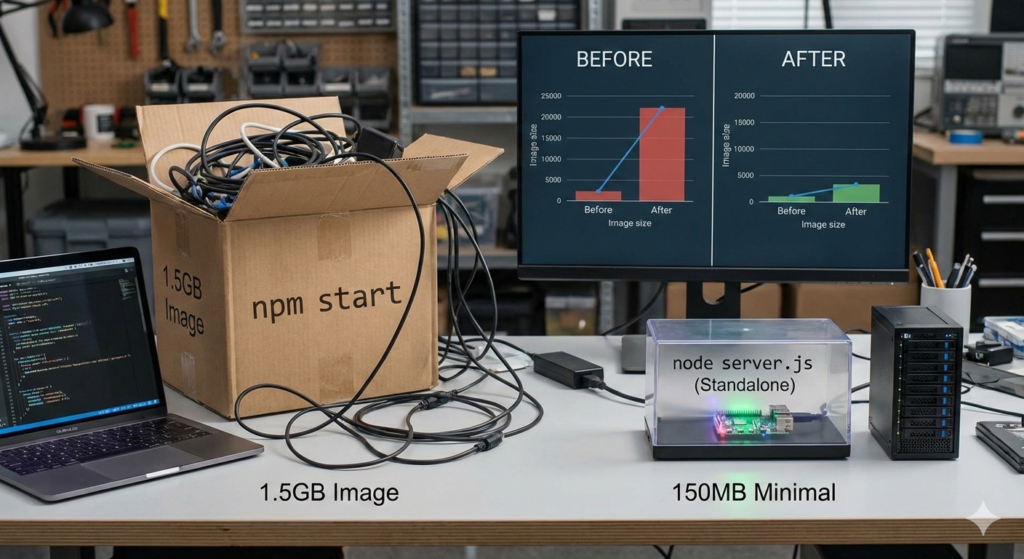
When I first started deploying Next.js apps to containers about three years ago, I used to just toss npm start into my Dockerfile, watch the build pass, and call it a day. I thought, “Hey, it works on my machine, it works in the cloud, we’re good!”
But then I actually looked at my image sizes and resource usage. My “simple” app was taking up 1.5GB of space, and the startup time was… let’s just say it gave me enough time to go grab a coffee.
If you want to level up your deployment game (and save a ton of money on cloud storage), we need to talk about why we’re ditching npm start for node server.js using Next.js output tracing.
The “Junior” Way: npm start
When you run npm start, you aren’t just running your app. You’re running the entire npm CLI tool, which then looks at your package.json, which then spawns a child process to run next start.
- The Bloat: You’re carrying around node_modules, including all those heavy devDependencies (like Tailwind, TypeScript, and ESLint) that you only needed during the build phase.
- The Overhead: Every MB matters when you’re scaling containers. Keeping the full source code and build tools in your production image is like moving into a new apartment but bringing all the empty cardboard boxes with you.
The “Pro” Way: node server.js (Standalone)
Next.js introduced a “standalone” output mode that is a total game-changer for Docker. When you enable this, Next.js figures out exactly which files are needed for production and copies them into a tiny, self-contained folder.
How to flip the switch
In your next.config.js, just add this:
module.exports = {output: 'standalone',}
Now, when you run next build, Next.js creates a folder at .next/standalone. This folder contains a minimal server.js file. You can run this with a simple node server.js command—no npm required, and no massive node_modules folder needed.
The Ultimate Minimal Dockerfile
To get that “chef’s kiss” minimal image, we use Multi-stage builds. We build the app in one stage and then copy only the standalone files into a tiny Alpine Linux image.
| Feature | npm start (Standard) | node server.js (Standalone) |
| Image Size | ~1GB – 1.5GB | ~100MB – 150MB |
| Security | Higher risk (more binaries) | Lower risk (minimal surface area) |
| Performance | Slower startup | Faster “cold starts” |
The “Better” Dockerfile Structure
# Stage 1: BuildFROM node:20-alpine AS builderWORKDIR /appCOPY . .RUN npm ci && npm run build# Stage 2: RunFROM node:20-alpine AS runnerWORKDIR /app# We only copy the standalone folder and static assets# This is where the magic happensCOPY --from=builder /app/.next/standalone ./COPY --from=builder /app/.next/static ./.next/staticCOPY --from=builder /app/public ./publicEXPOSE 3000CMD ["node", "server.js"]
Why this matters for us
As devs with a few years under our belts, we start realizing that “working” isn’t the same as “optimized.” Switching to node server.js in a standalone build:
- Speeds up CI/CD: Smaller images push and pull to registries way faster.
- Saves 💰: Less storage and faster scaling means lower AWS/GCP bills.
- Stability: You’re running the exact production-compiled code without the fluff of the package manager.
Trust me, once you see your image size drop from 1.2GB to 120MB, there’s no going back.
